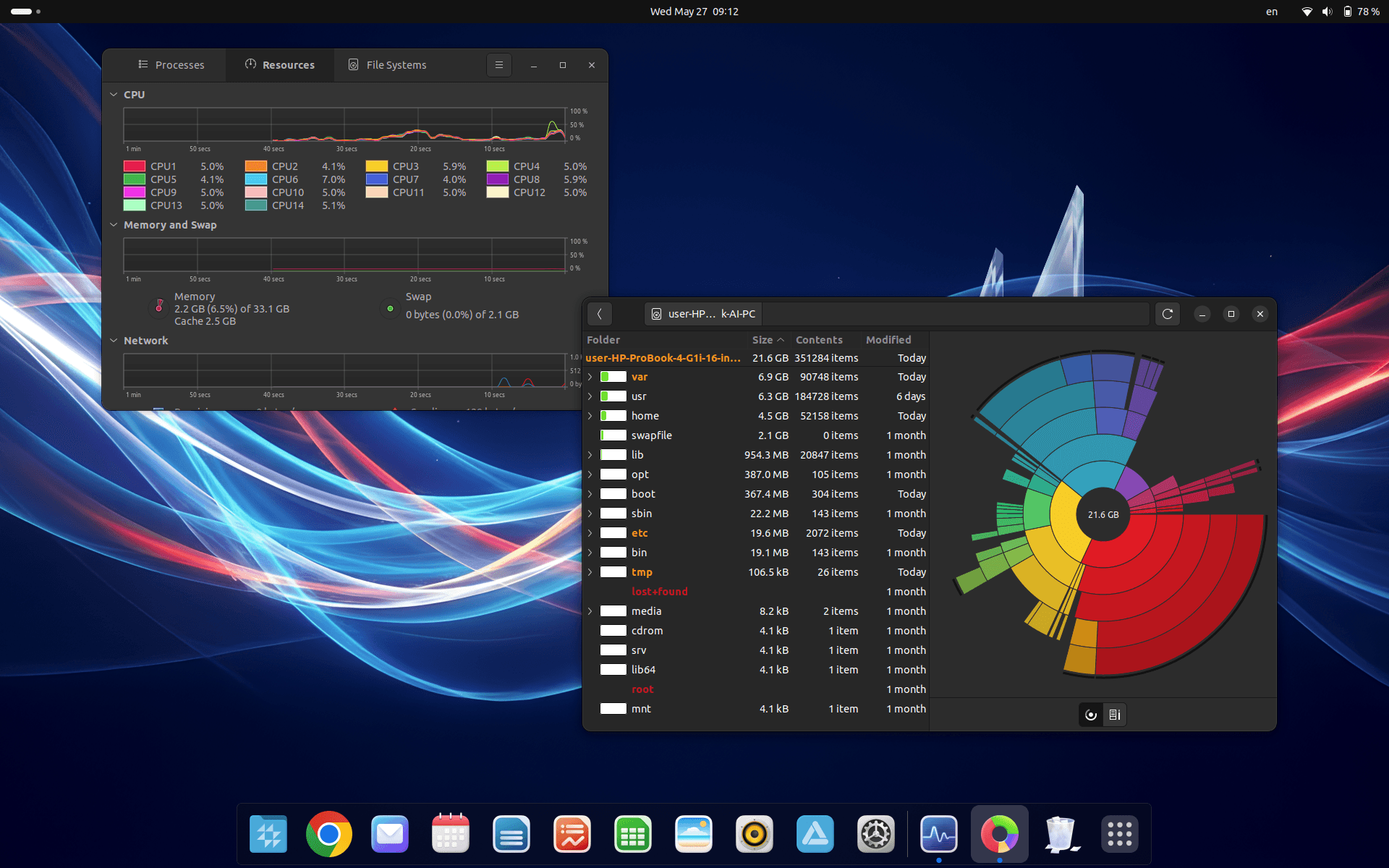
First use
First launch of CrvenaOS
Thank you for choosing CrvenaOS. Congratulations on installing this fast and practical operating system. We will show you a few simple steps to get started quickly.
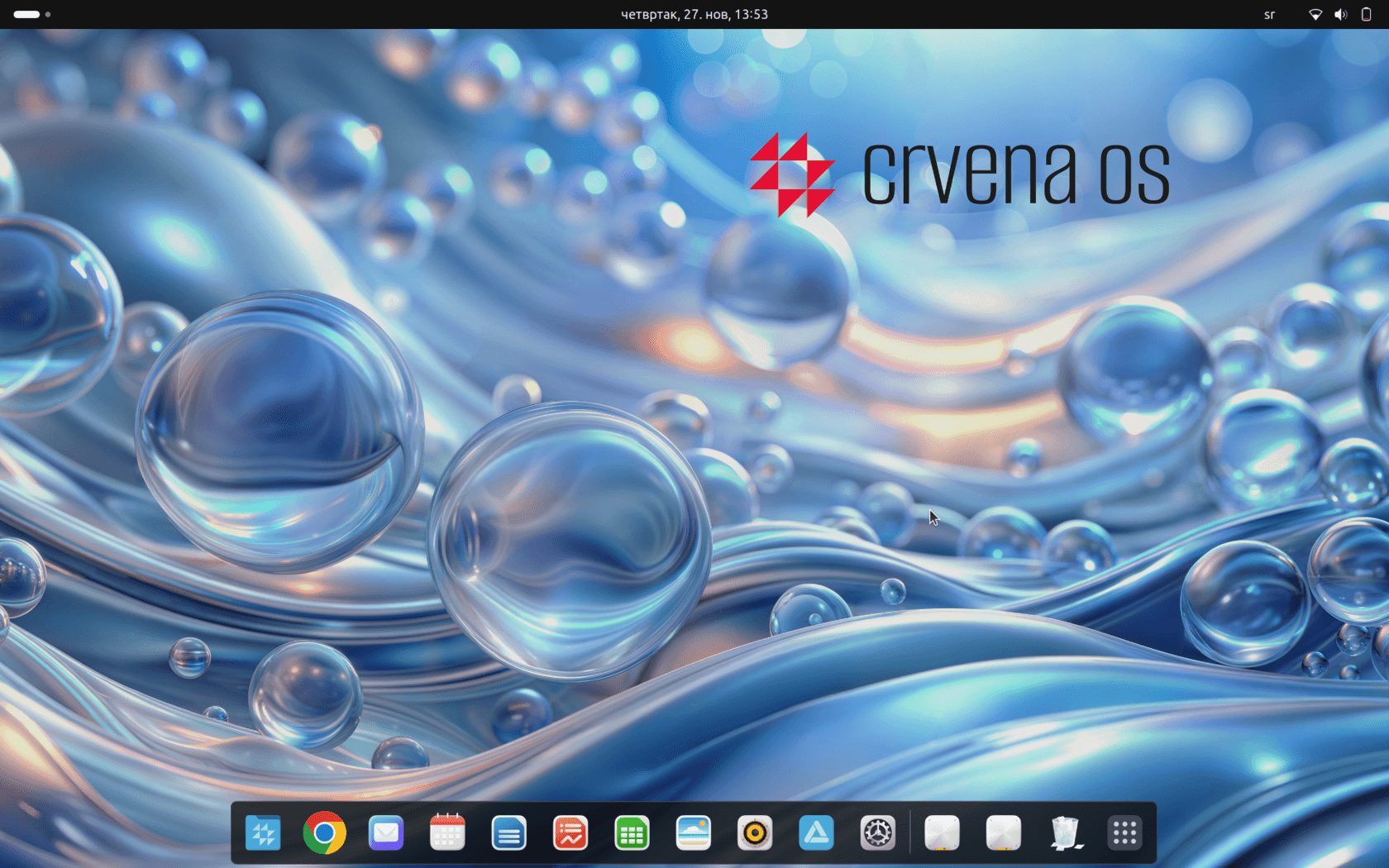
1. Signing in to CrvenaOS
CrvenaOS is already installed, the computer is on, and you see the sign-in screen. Click the username (in the example “crvena”, but you will see the name you set during installation). Next, enter the password you set during installation.
Note
In CrvenaOS this password is used not only for signing in but also for important actions such as installing and uninstalling programs or certain settings. This helps keep your data more secure.
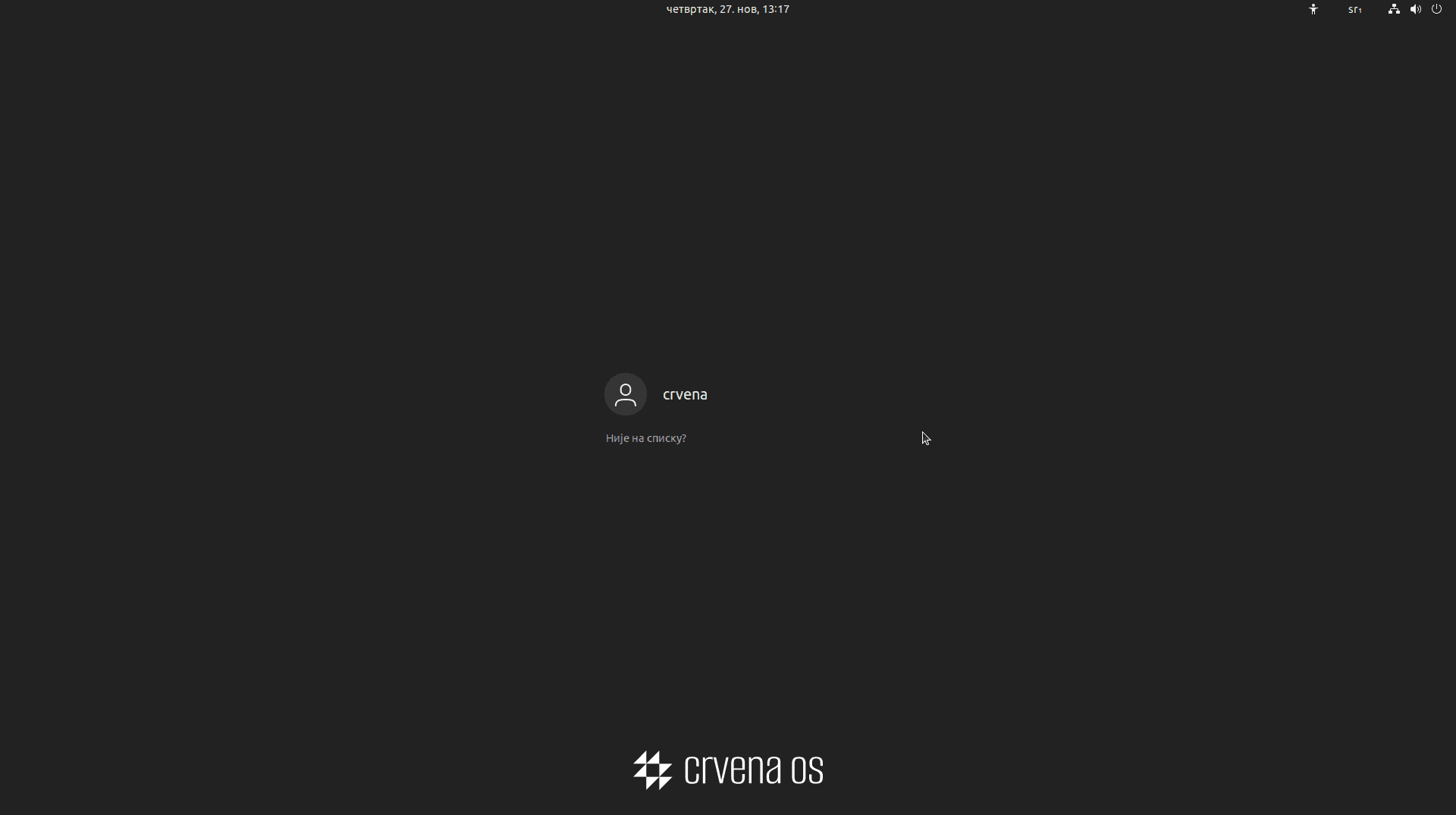
Enter password
Enter your password and sign in to the system. Welcome to CrvenaOS!
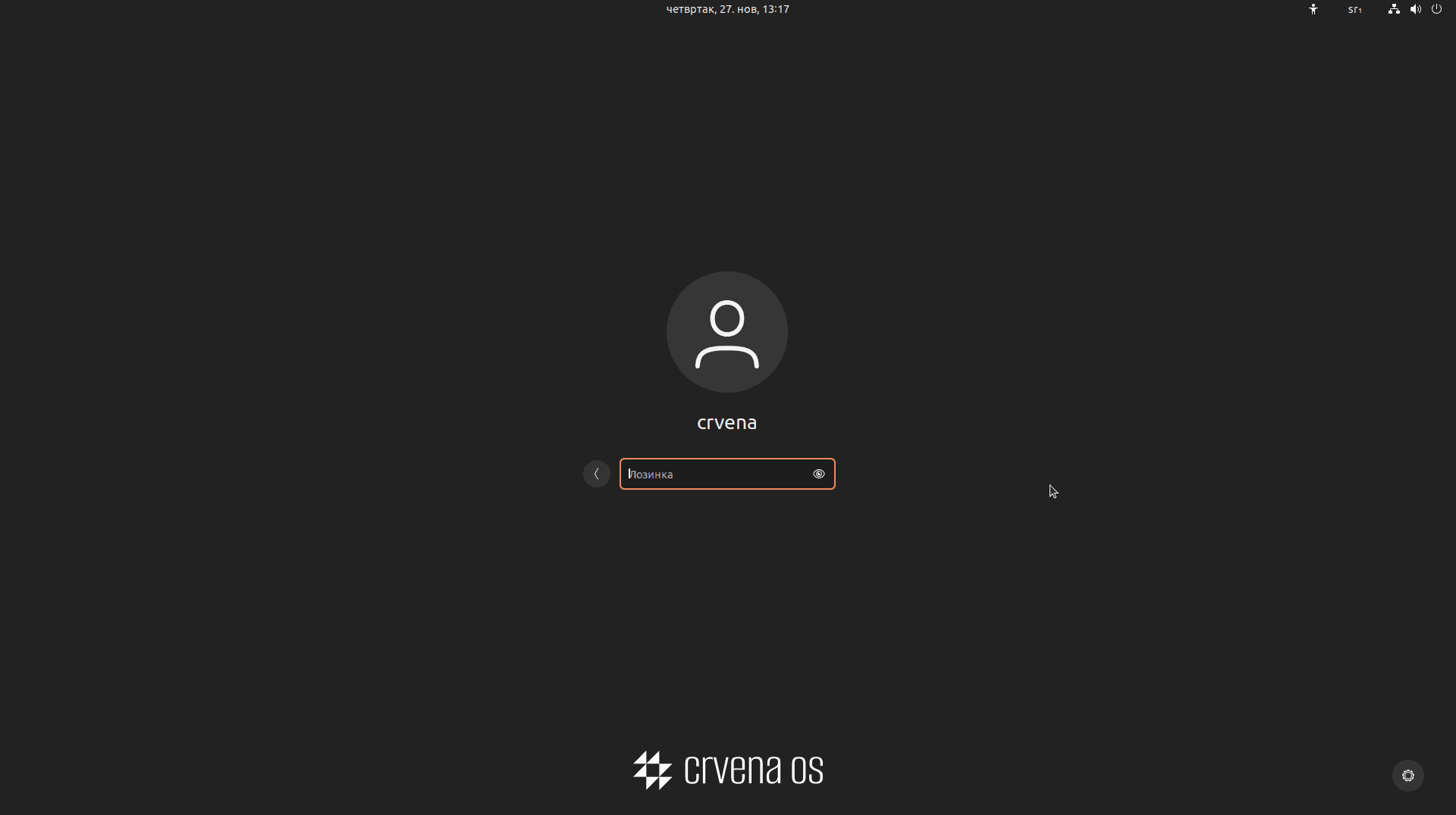
Desktop
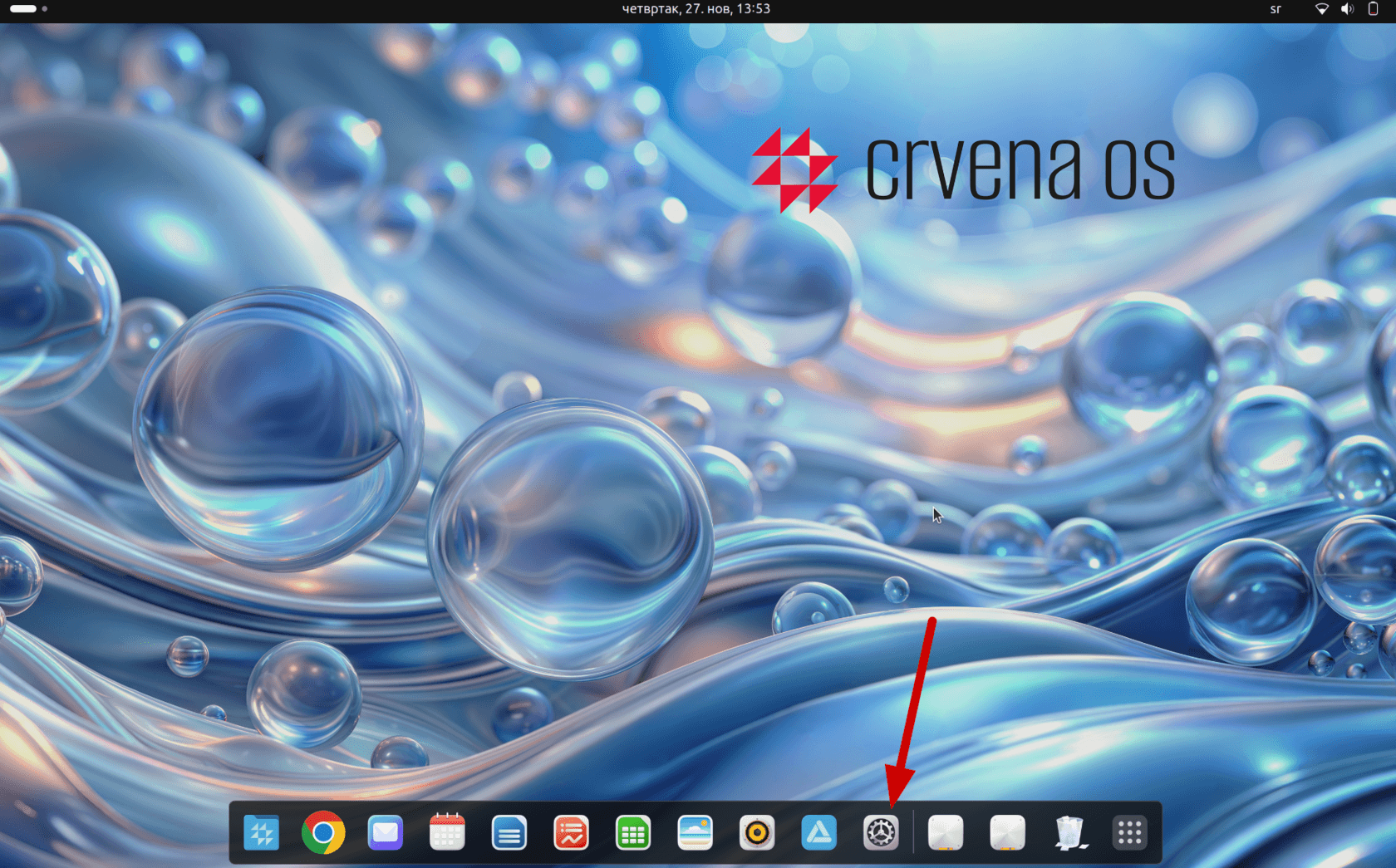
After signing in you will see the CrvenaOS desktop, ready to use.
2. Activating your CrvenaOS licence
During first use you will be asked to enter an activation key or start a trial period.
Note
You can skip activation or activate later. Without a key or trial you will not be able to use the App Store and some system settings. Access to some updates and technical support may be limited.
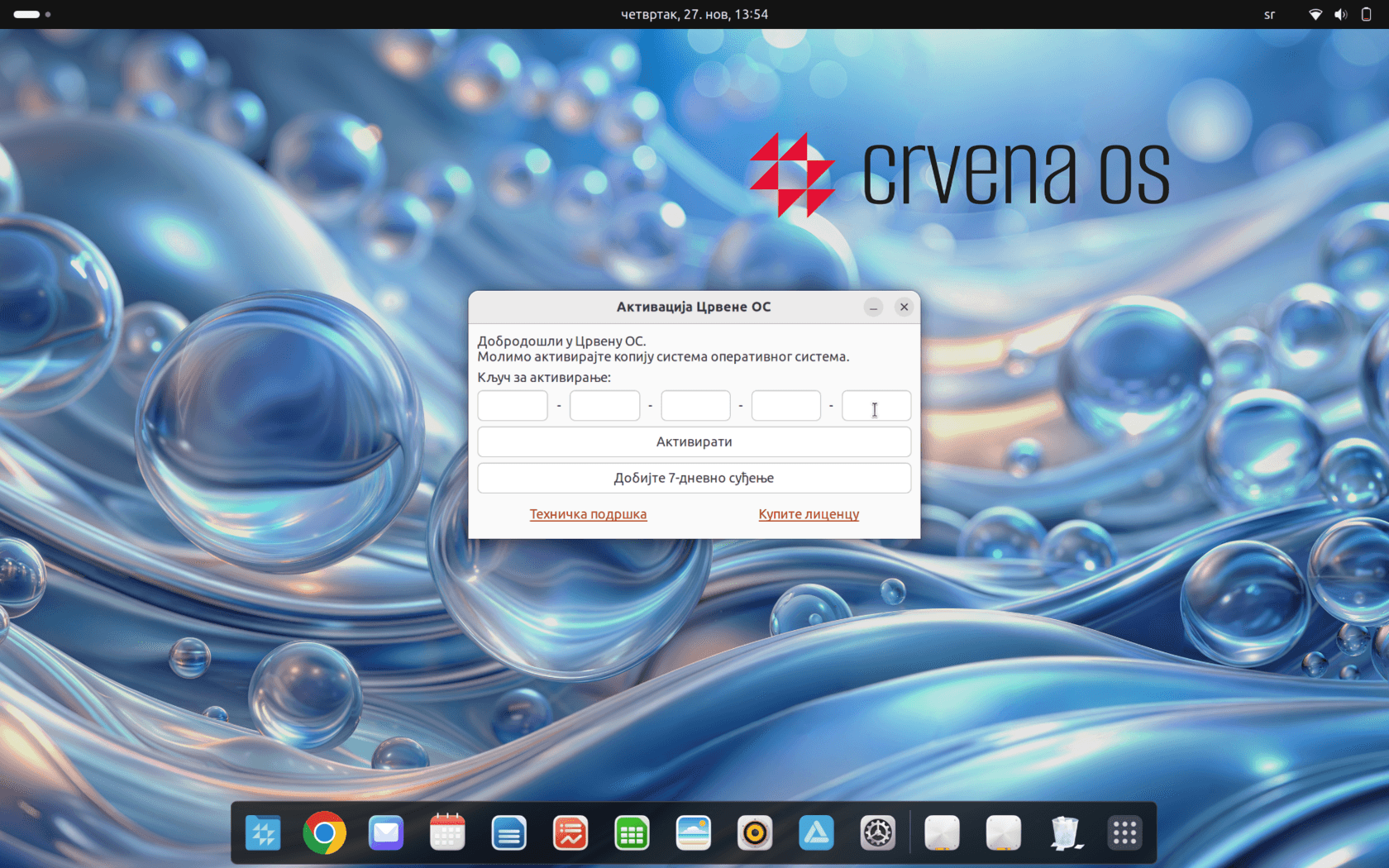
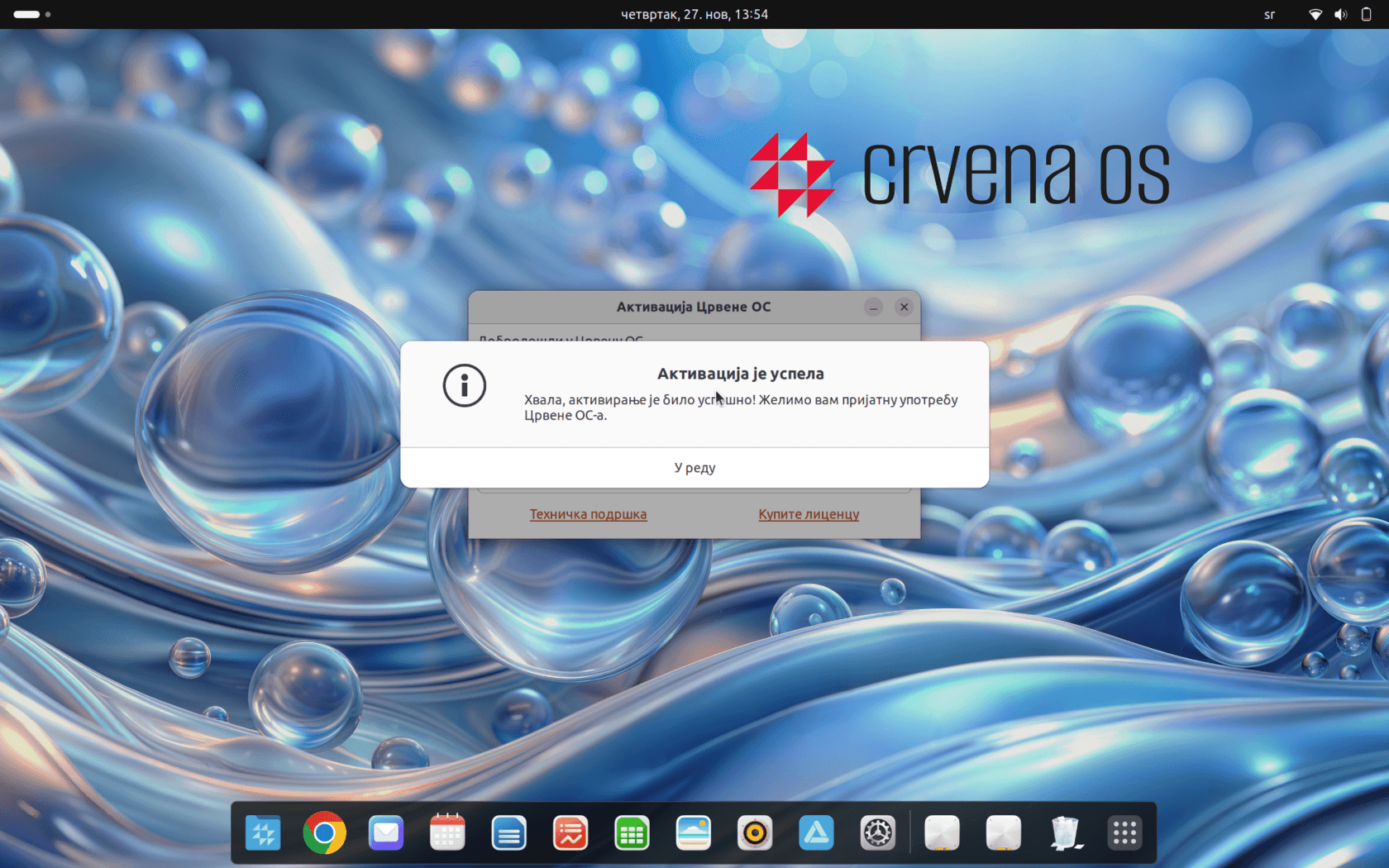
If you do not have a licence key yet, click “Activate trial period” to start using CrvenaOS fully without restrictions. If you have any problems or questions, contact technical support.
3. Basic actions in CrvenaOS
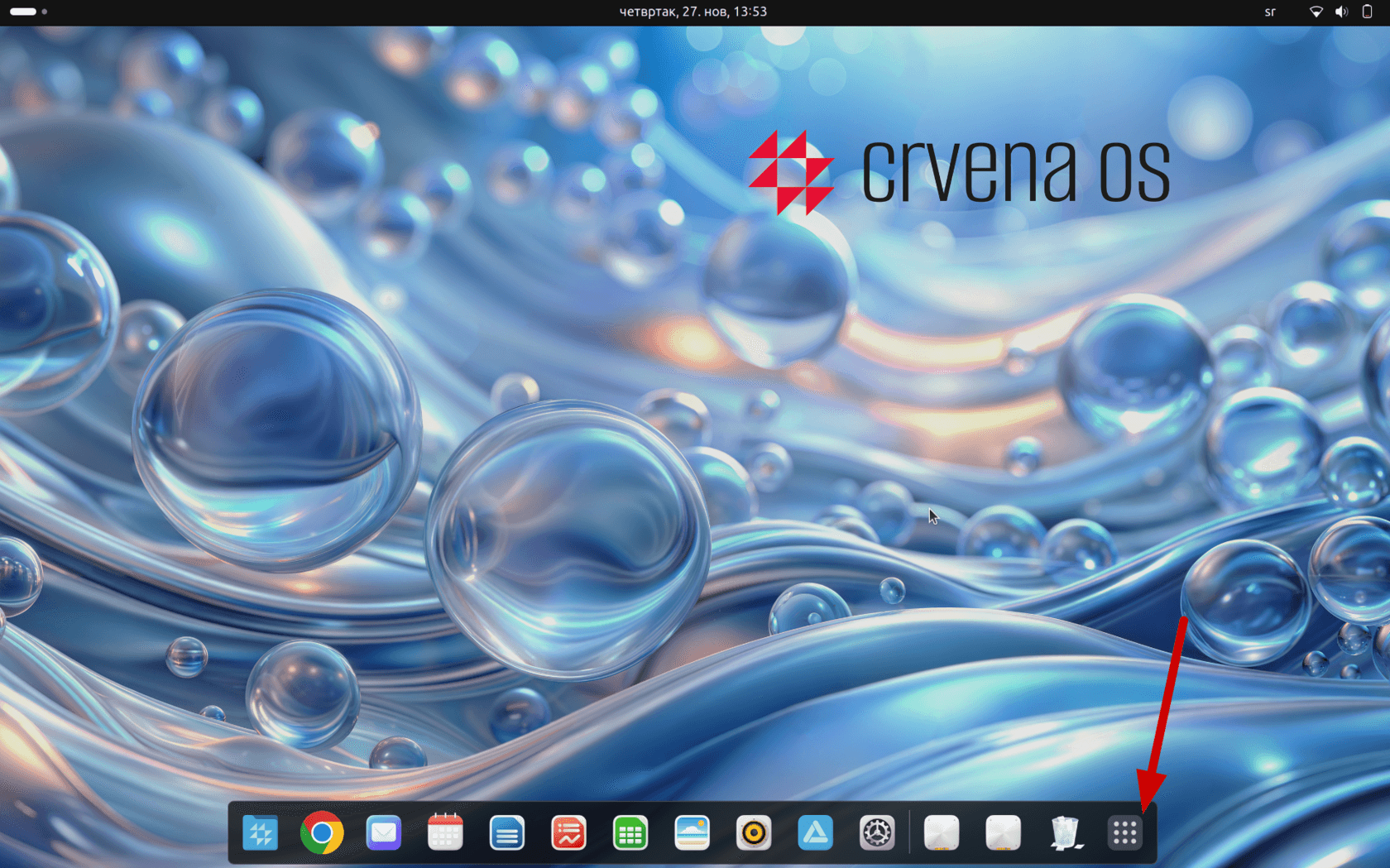
Launch applications
Use this icon to select and launch installed applications.
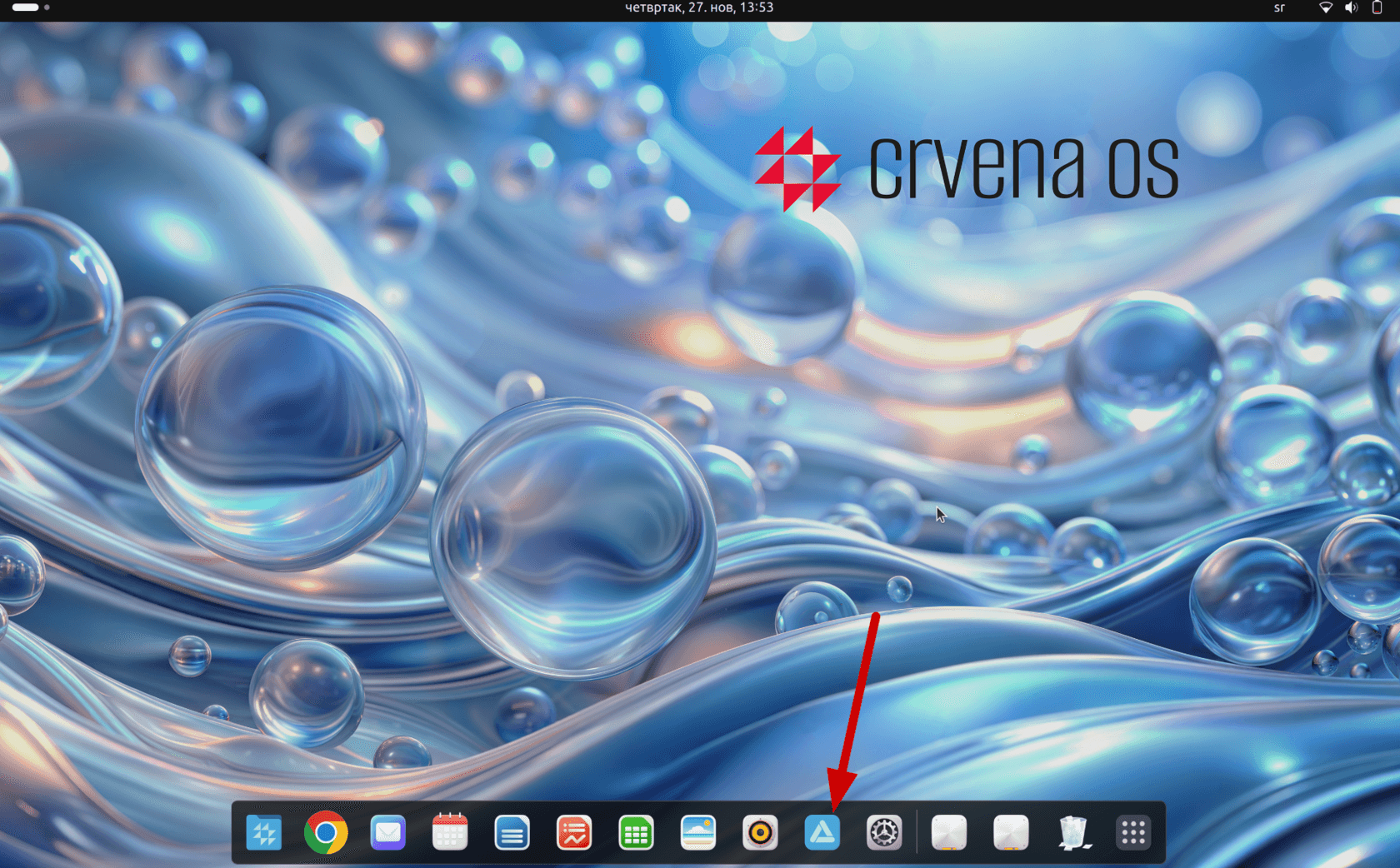
Application store
Open the application manager with over 60,000 apps for every need.
Settings
Use the settings icon to access a wide range of options and customise the system to your preferences.
System Requirements
Runs on modern hardware.